

If you’ve removed software but its background service is still running, or if an application leaves behind a broken service that causes system errors, you may want to delete that Windows service manually.
In Windows 11, you can remove any system or third-party service — as long as it’s not critical to the OS — using Command Prompt, the Registry Editor, or PowerShell.
Below is a safe, verified guide for deleting services on Windows 11 without damaging your system.
🔹 Important Warning Before You Start
Deleting the wrong service may cause system instability or break apps that rely on it.
Before deleting a service:
-
Make sure you know what the service belongs to
-
Stop the service first
-
Create a System Restore Point
Method 1: Delete a Windows Service Using Command Prompt
This is the fastest and most reliable method.
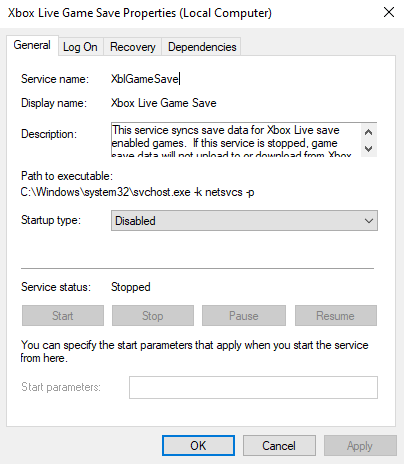
1. Find the service name
-
Press Win + R
-
Type:
-
Find the service
-
Double-click it and note the Service name (not the display name)
Example:
-
Service name:
MyService123 -
Display name: “Bluetooth Helper Service”
2. Stop the service
In the same window, click Stop.
3. Delete the service using CMD
Open Command Prompt as administrator and run:
Example:
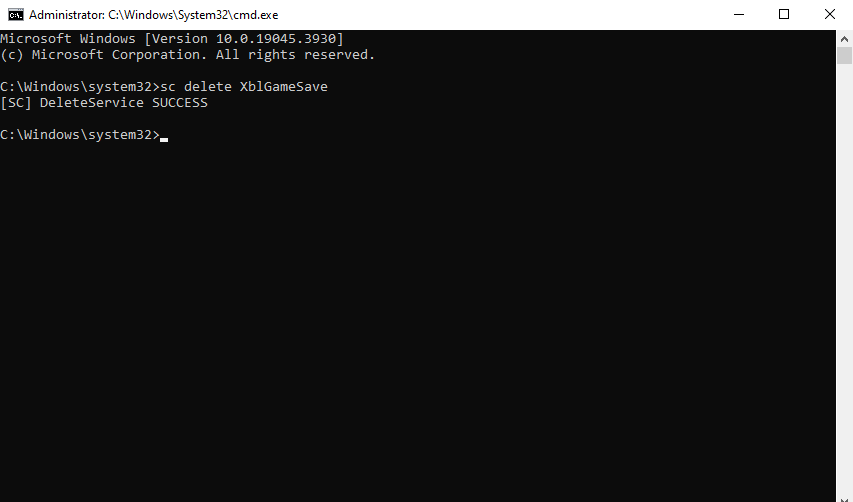
You should see:
Now restart your PC.
Method 2: Delete a Windows Service via PowerShell
If CMD fails, PowerShell can force-remove it.
1. Open PowerShell as Administrator
Run:
Find the service name.
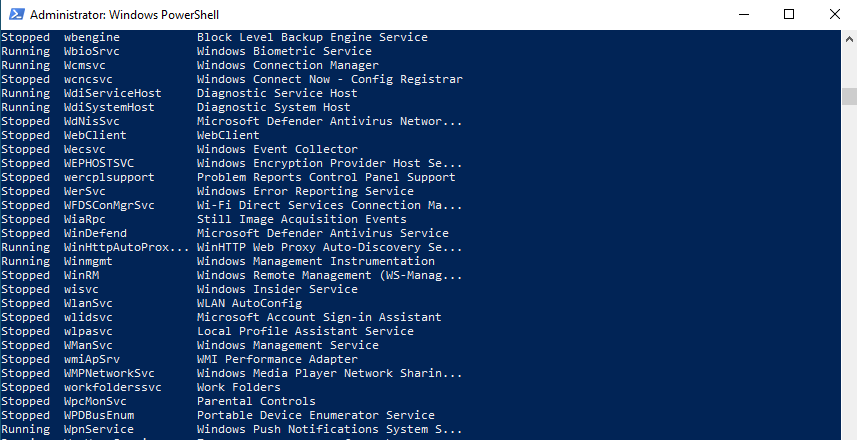
2. Remove the service
Use:

Restart your computer afterwards.
Method 3: Delete a Service Through the Windows Registry (Advanced)
Use this if the service cannot be removed using CMD or PowerShell.
1. Open Registry Editor
Press Win + R, type:
Go to:
2. Find the service folder
Each service has its own folder using the ServiceName.
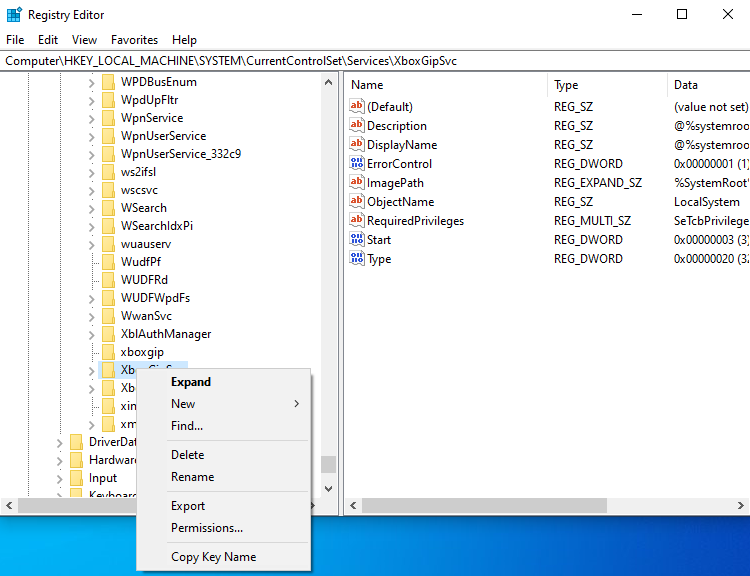
3. Delete the service folder
Right-click → Delete
4. Restart your PC
This permanently removes the service.
How to Identify Unknown Services (Optional but Helpful)
If you’re unsure what a service does:
-
Search the service name in Google
-
Check the Path to executable inside service properties
-
Look for related files in
-
Review Startup Apps to find what installed it
This helps avoid deleting something important.
When Should You Delete a Windows Service?
You may need to delete a service when:
-
A deleted program left behind a useless service
-
A service is broken and causes startup delays
-
Malware or adware installed a suspicious service
-
Drivers were removed but the service remains
-
You’re troubleshooting system errors
For typical Windows services like Windows Update, DHCP Client, Windows Defender, Print Spooler, DO NOT delete them.
Explore other helpful tools in our Windows utilities section.
