
Microsoft continues to push users toward cloud integration, AI features, and mandatory Microsoft accounts during the Windows 11 setup process. But many people still prefer to install Windows offline — whether for privacy, testing, a slow connection, or preparing PCs for customers.
You can still install Windows 11 without internet access and create a full offline local account.
Method 1: Use the “OOBE\BYPASSNRO” Command
This is the fastest and most reliable method as of 2025.
It tells Windows to unlock the hidden offline account setup screen.
Steps:
-
Boot from your Windows 11 USB and start the installation.
-
Continue until you reach the “Let’s connect you to a network” screen.
-
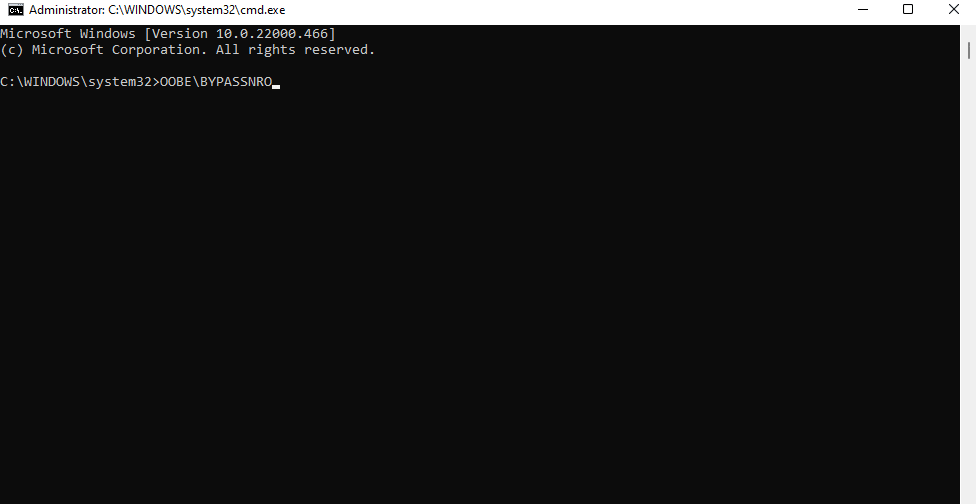
Press Shift + F10 → Command Prompt will open.
-
Type this command:
-
Press Enter — the system will reboot automatically.
-
After reboot, you’ll see a new option:
“I don’t have internet”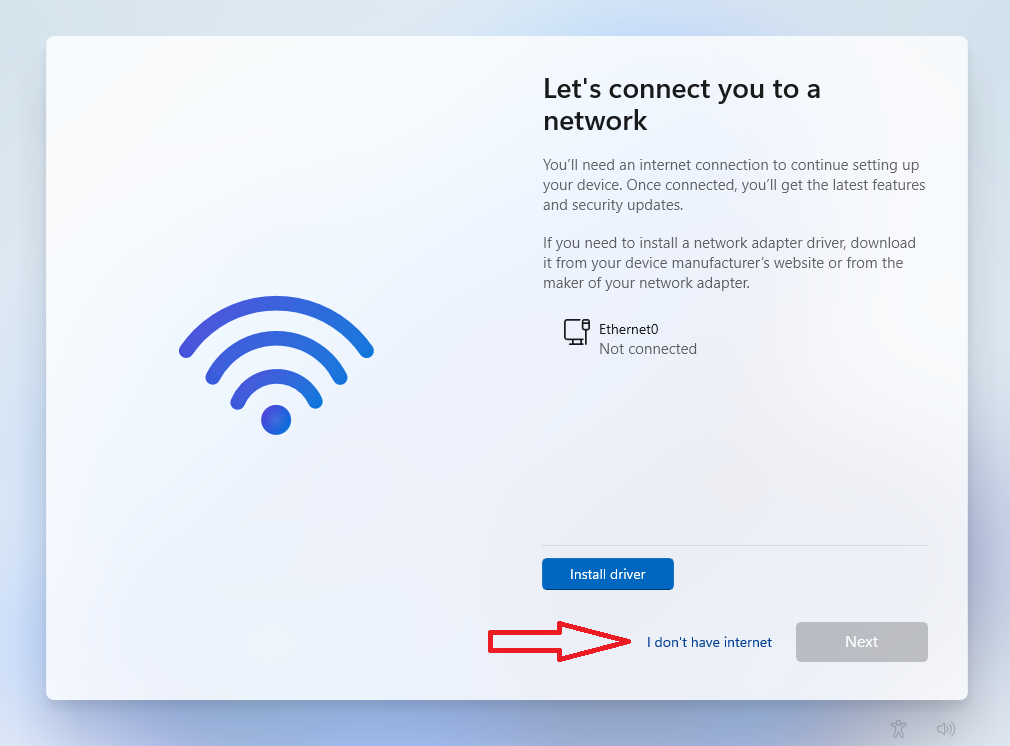
-
Choose “Continue with limited setup”.
-
Now you can create a local account like in Windows 10.
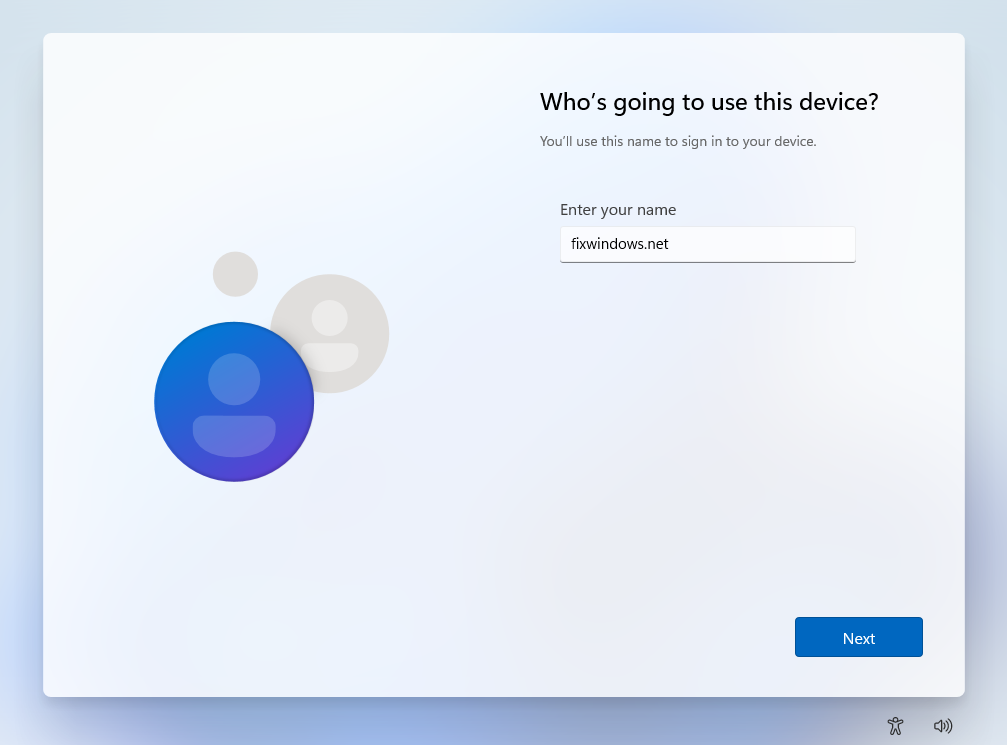
Works on all Windows 11 builds (24H2, 25H2).
Method 2: Use the “start ms-cxh:localonly” Command
After copying Windows 11 files and rebooting for the first time, you’ll be taken to the OOBE (Out of the Box Experience) screen for settings. At any point on this screen, even at the very beginning, you can initiate local account creation, even without an internet connection:
- Press Shift+F10 on your keyboard. On some laptops, you may need to press Shift+Fn+F10.
- A command prompt window will open. Click it (by default, it’s not active immediately after opening). To switch the input language, use the Alt+Shift key combination.
- Enter the command
start ms-cxh:localonly
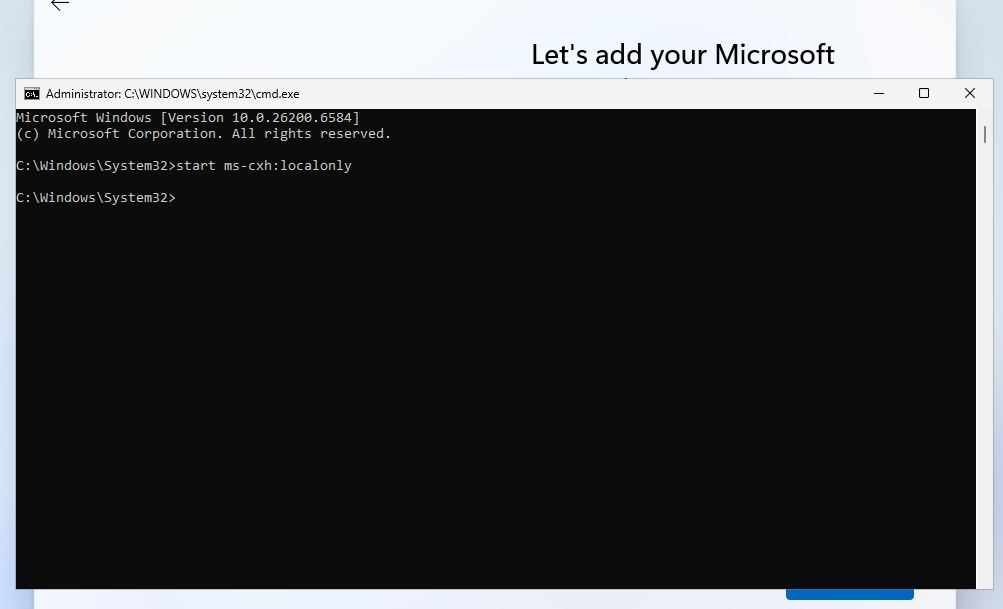
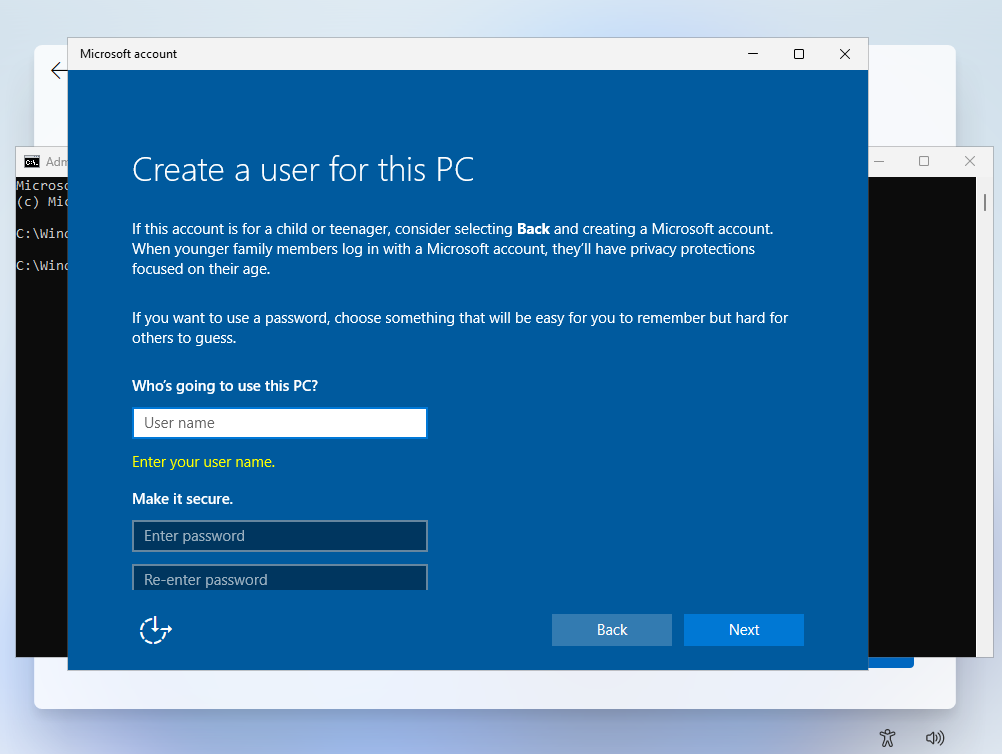
A local account creation window will appear. Enter the required username and password. Note: This may not work in preview builds, but it works properly in the latest 25H2 build. If it doesn’t work for you, use one of the other methods.
Why Install Windows 11 Without Internet?
Many users prefer offline setup because it:
-
Protects privacy (no forced Microsoft account)
-
Speeds up installation
-
Is required in some workplaces or offline labs
-
Prevents unwanted syncing of personal data
-
Helps avoid initial bloat and advertisements
Local accounts are still fully supported in Windows 11 — they’re just hidden. After installation, you can connect to Wi-Fi normally. All Windows features (updates, apps, drivers) will work.
You can switch to a Microsoft account later if needed.
Explore other helpful tools in our Windows utilities section.
