

Google Chrome recently introduced new AI-powered features that enhance browsing, summarize pages, and offer smart suggestions. While these tools can be useful, many users in the prefer disabling AI Mode due to privacy concerns, increased RAM usage, or simply to keep Chrome running as light as possible.
In this updated guide, you’ll learn how to fully disable AI Mode in Chrome on Windows and macOS, including through Chrome Settings, Flags, and Google account controls.
Why Disable Chrome’s AI Mode?
AI features in Chrome can require additional system resources and may rely on cloud processing. Users often turn them off for reasons like:
-
🛡️ Privacy concerns (AI analyzing webpage content)
-
⚡ Higher CPU or RAM usage
-
🔋 Battery drain on laptops
-
🎮 Performance drops during gaming or streaming
-
🤖 AI suggestions appearing when not needed
Fortunately, Chrome allows disabling most AI tools manually.
1. Turn Off Chrome AI Features in Settings
Chrome frequently experiments with AI-enabled tools such as:
-
AI Writing
-
Tab Organizer
-
Smart Autofill
-
AI Summaries
To disable them:
-
Open Chrome
-
Go to:
chrome://settings -
Open Experimental AI (if visible)
-
Disable:
-
AI Writing
-
Tab Organizer
-
Autofill Enhancements
-
Summaries & Smart Actions
-
If your Chrome version does not show this menu, continue with method #2.
2. Disable AI Mode Using Chrome Flags (More Effective)
Chrome Flags give access to experimental controls. Many AI components run through these internal modules.
Open Flags:
Paste this in the address bar:
Then disable the following flags one by one:
Recommended Flags to Disable AI Functions
Search these in the Flags search bar:
- “AI Mode Omnibox entrypoint” – Disable
- “Enable AI writing” – Disable
- “Enable Tab Organizer” – Disable
- “Autofill predictions” – Disable
- “Contextual page recommendations” – Disable
- “On-device AI features” – Disable
- “Google AI integration” – Disable (if available)
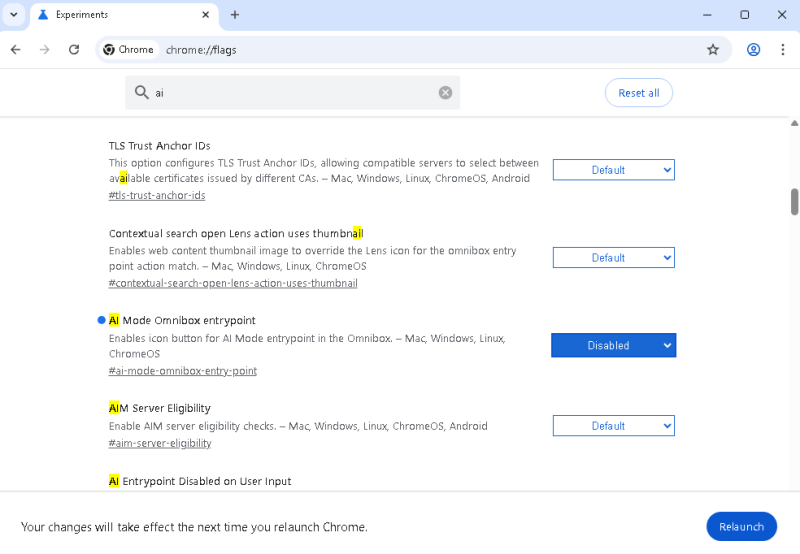
After changing each flag:
➡️ Click Relaunch.
This usually removes AI Mode entirely.
3. Disable Chrome’s AI Suggestions in Your Google Account
Some AI features are tied to your Google account rather than Chrome itself.
Steps:
-
Visit: https://myaccount.google.com
-
Open Data & Privacy
-
Scroll to Personalization
-
Turn off:
-
“Web & App Activity”
-
“Search Personalization”
-
“Smart Suggestions”
-
This prevents Google from generating AI-based browsing or search suggestions.
4. Turn Off Chrome AI Search Features (SGE)
Google Search now uses AI Overviews (formerly SGE). If you want traditional search results:
-
Go to google.com
-
Tap More / Settings
-
Select Search settings
-
Disable:
-
AI overviews (if shown)
-
Personalized search results
-
This doesn’t affect Chrome directly, but it removes AI panels during searches.
5. Disable Chrome’s Automatic AI Updates
If AI Mode keeps returning, Chrome may be enabling experimental features through automatic rollouts.
To stop this:
Windows
-
Press Win + R
-
Enter:
-
Navigate to:
Computer Configuration → Administrative Templates → Google → Google Chrome
4. Enable policies:
-
-
“Disable Chrome experiments”
-
“Disable Chrome features via Variations”
-
“Control Chrome AI features” (if present)
-
This prevents Chrome from re-activating AI automatically.
6. For Advanced Users: Disable AI via Command Line
Not required for most users, but you can launch Chrome with AI disabled:
Windows shortcut:
Right-click Chrome → Properties → Target field → Add:
Click Apply → OK.
Chrome will now start without AI Mode.
7. Remove Chrome AI Extensions (If Installed Automatically)
Sometimes Chrome activates AI tools through background extensions.
Check manually:
-
Go to:
chrome://extensions/ -
Disable or remove:
-
AI Suggest
-
AI Helper
-
Smart Writing Tools
-
Tab AI Organizer
-
(Fake or unwanted extensions also cause performance issues.)
Conclusion
Chrome’s new AI Mode offers convenience, but many users prefer disabling it due to privacy, performance limitations, or personal preference. Using the steps above—Settings, Flags, Account controls, and Policies—you can completely disable AI features and keep Chrome fast, lightweight, and predictable.
If Chrome re-enables AI after updates, revisit the guide and check the Flags section again.
