

If your Windows 10 or 11 PC is suddenly running slow, the svchost.exe process might be using a lot of your CPU. This is a common issue, but the good news is — it can be fixed easily. In this article, we’ll explain what svchost.exe is, why it causes high CPU usage, and how to stop it from slowing down your computer.
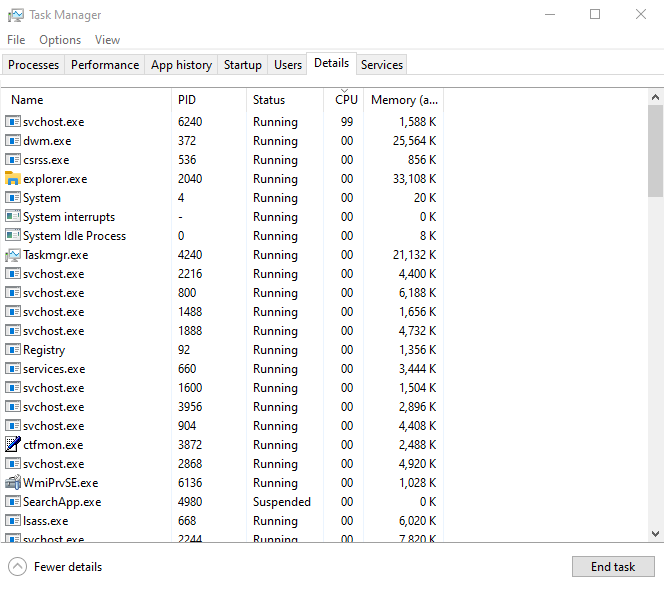
What Is svchost.exe?
The svchost.exe (Service Host) process is a core Windows component that helps run various background services. Each instance of svchost.exe can manage multiple system tasks — such as Windows Update, network connections, audio, or user interface features.
Normally, it doesn’t consume much CPU power. But sometimes, due to system errors, corrupted updates, or unnecessary background services, svchost.exe can start using excessive CPU or memory.
Why svchost.exe Uses Too Much CPU
Here are the most common causes of high CPU usage by svchost.exe:
-
Windows Update issues — stuck or corrupted updates.
-
Malware infection — fake svchost.exe processes disguised as viruses.
-
Too many background services running under one process.
-
System maintenance tasks such as indexing or telemetry.
-
Corrupted system files (missing DLLs or outdated drivers).
How to Fix svchost.exe High CPU Usage
Follow these simple steps to reduce CPU load safely:
1. Restart Windows Update Service
-
Press Win + R, type
services.msc, and press Enter. -
Scroll down to Windows Update.
-
Right-click → Restart.
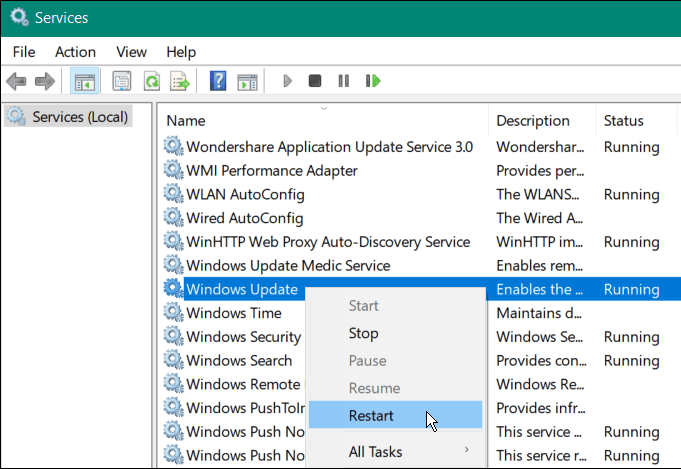
If this doesn’t help, try stopping the service temporarily to see if CPU usage drops.
2. Scan for Malware
Sometimes a fake svchost.exe file can run in the background.
Run a full system scan using Windows Defender or any trusted antivirus software.
3. Check Which Services Use CPU
-
Press Ctrl + Shift + Esc to open Task Manager.
-
Right-click svchost.exe → Go to service(s).
-
Identify which services are active — disable unnecessary ones carefully.
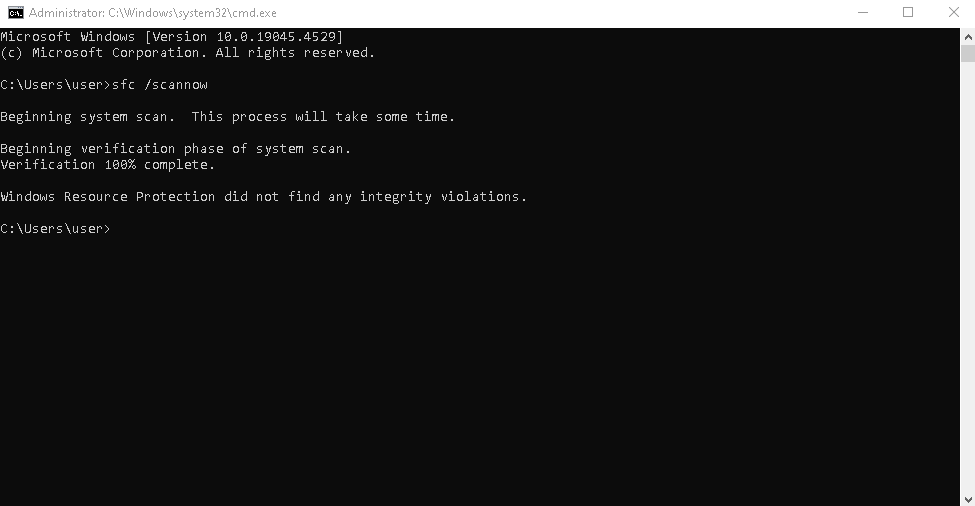
4. Run System File Checker
To fix corrupted system files:
Run this command in Command Prompt (Admin). It will automatically repair missing or damaged files.
5. Limit Background Processes
-
Open Settings → System → Power & battery → Battery usage.
-
Disable or restrict unnecessary apps that run in the background.
Preventing svchost.exe CPU Spikes
-
Keep Windows updated regularly.
-
Avoid downloading from untrusted sites.
-
Clean your startup apps using Task Manager → Startup tab.
-
Occasionally use tools like Disk Cleanup or CCleaner.
Conclusion
The svchost.exe high CPU usage problem is usually temporary and easy to fix with a few quick steps. Restarting services, scanning for malware, or running the system file checker can restore performance quickly. With proper maintenance, you can keep your Windows PC running fast and stable.
Explore other helpful tools in our Windows utilities section.
