


If your Windows 10 or 11 computer suddenly shows a Blue Screen of Death (BSOD) with the message Kernel Mode Heap Corruption, you’re not alone. This error is fairly common among Windows users and usually indicates a problem with drivers or system memory.
In this article, we’ll explain what it means, why it appears, and how to fix it step by step.
What Is the Kernel Mode Heap Corruption Error?
The Kernel Mode Heap Corruption error occurs when a system component or driver corrupts critical data in Windows kernel memory. This leads to system crashes, freezes, or BSODs.
Technically, it’s a “stop code” that protects your system from further damage when Windows detects unstable memory or driver behavior.
The error message usually looks like this:
“Your PC ran into a problem and needs to restart… Stop code: KERNEL_MODE_HEAP_CORRUPTION”

Main Causes of Kernel Mode Heap Corruption
This BSOD can appear for several reasons, but the most common are:
-
🧠 Outdated or faulty GPU drivers (especially NVIDIA or AMD).
-
💾 Corrupted system files or memory errors.
-
🔧 Third-party software or overclocking utilities.
-
🦠 Malware infection affecting system components.
-
⚙️ Recent Windows update or driver installation.
How to Fix Kernel Mode Heap Corruption on Windows 10/11
Follow these simple but effective methods to resolve the issue.
1. Update or Reinstall Your Graphics Driver
The majority of Kernel Mode Heap Corruption errors come from graphics drivers.
To fix them:
-
Press Win + X → Device Manager.
-
Expand Display adapters.
-
Right-click your GPU → Uninstall device.
-
Restart your computer.
Windows will reinstall the default driver automatically.
Alternatively, download the latest driver directly from NVIDIA, AMD, or Intel official websites.
2. Run System File Checker and DISM
Corrupted system files often cause BSODs. Run these commands in Command Prompt (Admin):
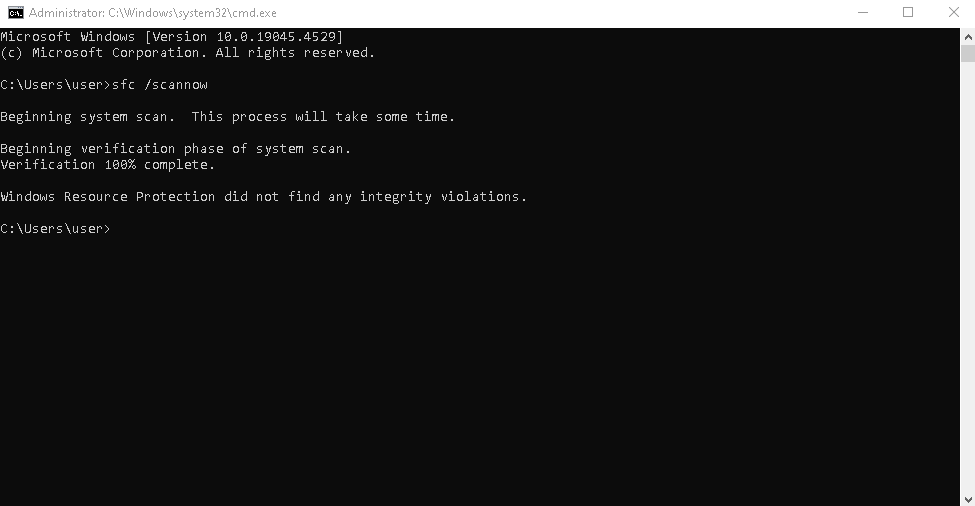
Then, run:
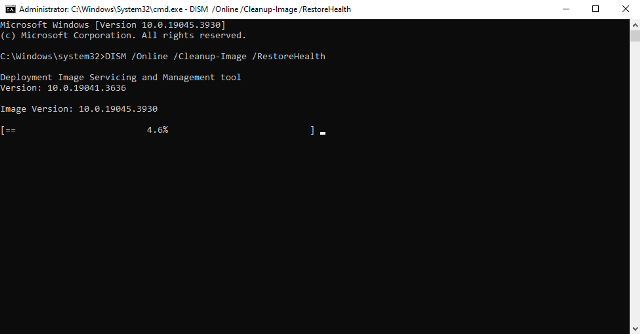
These tools will automatically repair damaged Windows components.
3. Check Memory Using Windows Memory Diagnostic
RAM errors can trigger kernel corruption.
To check your memory:
Press Win + R, type mdsched.exe, and hit Enter.

Choose Restart now and check for problems.
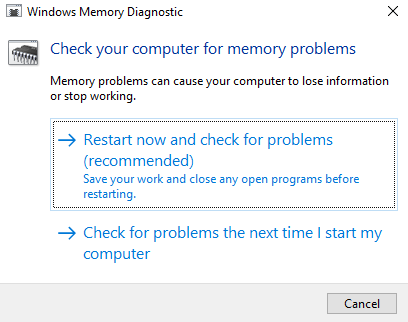
Windows will scan your memory on restart and show results.
If errors are found, you may need to replace your RAM module.
4. Disable Overclocking or Tuning Tools
If you use MSI Afterburner, EVGA Precision X, or any overclocking utility, disable them.
Overclocked CPU or GPU frequencies can cause instability and trigger kernel-related crashes.
5. Scan for Malware or Rootkits
Some malware disguises itself as system processes and causes kernel heap corruption.
Run a full system scan using Windows Defender or tools like Malwarebytes to remove threats.
6. Roll Back or Uninstall Problematic Updates
If the error appeared after a recent Windows Update, try rolling it back:
Go to Settings → Windows Update → Update history.
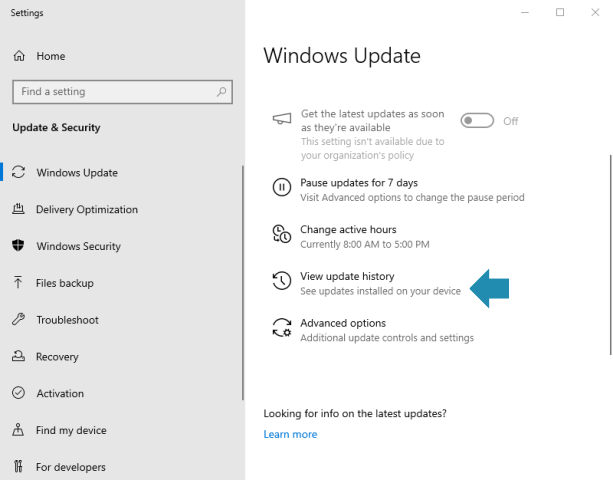
Click Uninstall updates.
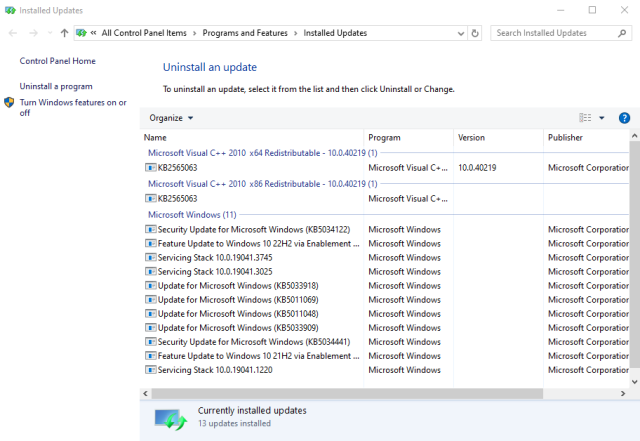
Select the latest update and uninstall it.
7. Use System Restore
If nothing works, use System Restore to roll back your system to a stable point:
-
Press Win + R, type
rstrui, and press Enter. -
Choose a restore point before the problem started.
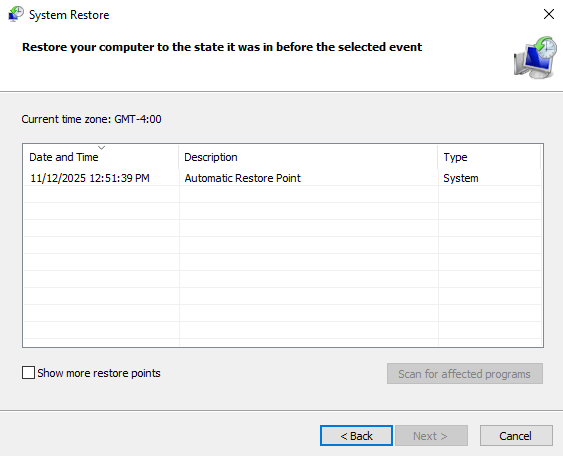
3.Follow the prompts to restore your PC.
How to Prevent Kernel Mode Heap Corruption
To avoid seeing this BSOD again:
-
Keep all drivers up to date.
-
Avoid installing unverified third-party software.
-
Regularly scan your PC for malware.
-
Don’t use unsafe overclocking settings.
-
Run Windows Update only from official sources.
Final Thoughts
The Kernel Mode Heap Corruption error can be frustrating, but it’s usually easy to fix.
Most of the time, updating your GPU driver or checking system files will solve the problem.
By following the steps above, you can restore your PC’s stability and prevent future crashes.
Explore other helpful tools in our Windows utilities section.
