

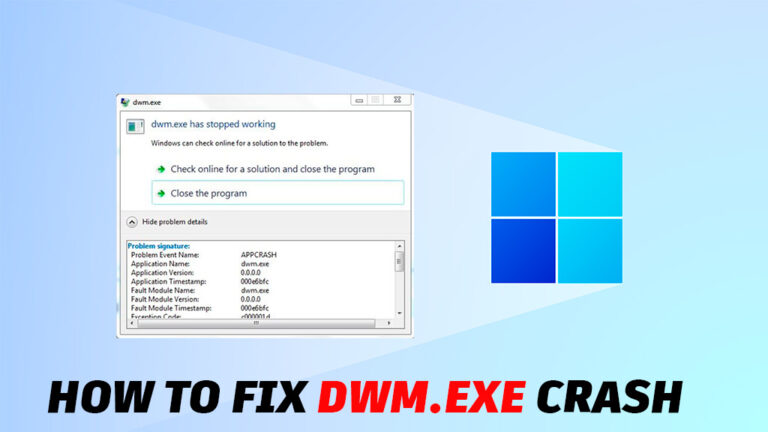
If your PC suddenly freezes, the screen flickers, or you’re kicked out of apps with “DWM.exe has stopped working,” you’re dealing with a Desktop Window Manager crash.
DWM.exe is responsible for rendering the entire Windows interface — windows, animations, taskbar, transparency effects, and more.
When it crashes, your system becomes unstable, graphics glitch, and sometimes the screen goes black for a moment.
In this guide, you’ll learn why DWM.exe crashes and how to fix the problem on both Windows 10 and Windows 11.
What Is DWM.exe?
Desktop Window Manager (DWM.exe) is a core Windows process that manages everything you see on your display:
-
Window animations
-
Aero effects
-
Taskbar transparency
-
Rendering apps using GPU
-
Multi-monitor setups
-
Desktop composition
When this process stops responding, Windows can’t draw the interface correctly, leading to crashes or screen flickering.
Common Causes of DWM.exe Crash on Windows
Several issues can cause DWM.exe failures:
-
❗ Outdated or corrupted GPU drivers
-
🖥 Faulty graphics settings or unsupported hardware acceleration
-
🔧 Conflicts with third-party apps (screen recorders, overlays, theming tools)
-
📺 Monitor or display configuration issues
-
💾 Corrupted Windows system files
-
⚡ Overclocking GPU/CPU
-
🦠 Malware modifying system components
These are the problems you need to address — let’s fix them.
Fix DWM.exe Crash on Windows 10/11
Follow these steps in order. One of them will solve the issue for almost all users.
1. Update or Reinstall Graphics Drivers
DWM.exe depends heavily on the GPU. Any driver issue can break it.
✔ Update GPU drivers
-
NVIDIA users: GeForce Experience
-
AMD users: Radeon Software
-
Intel users: Intel Driver & Support Assistant
✔ Or reinstall completely
-
Press Win + X → Device Manager
-
Expand Display adapters
-
Right-click your GPU → Uninstall device
-
Restart your PC
-
Install fresh drivers from the official website
This fixes the majority of DWM.exe crashes.
2. Disable Hardware-Accelerated GPU Scheduling
Sometimes this Windows feature conflicts with older GPUs.
-
Go to Settings → System → Display
-
Open Graphics settings
-
Turn off Hardware-accelerated GPU scheduling
-
Restart your PC
3. Reset Visual Effects Settings
Misconfigured visual settings can overload DWM.exe.
-
Press Win + R, type:
-
Select Adjust for best performance
-
Then enable:
-
Smooth edges of screen fonts
-
Show thumbnails instead of icons
-
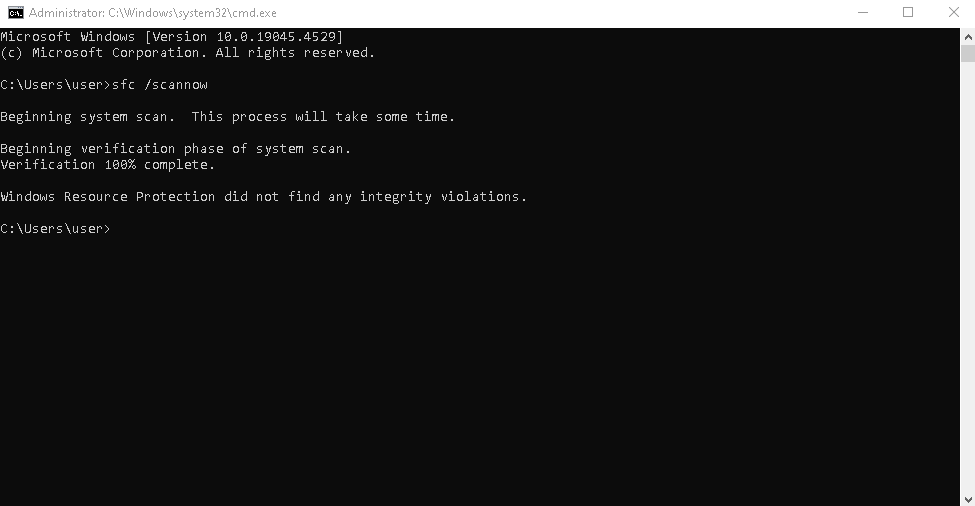
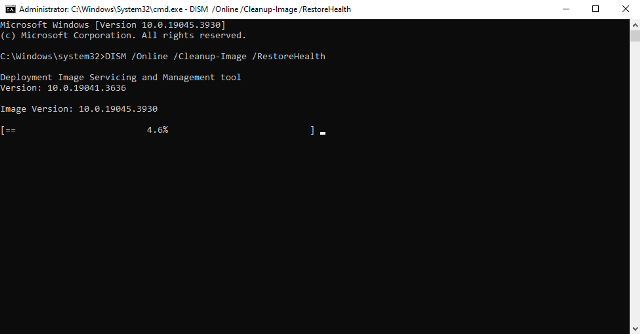
4. Run System File Checker and DISM
Corrupted system files break DWM.exe.
Open Command Prompt (Admin) and run:
sfc /scannow
Then run:
DISM /Online /Cleanup-Image /RestoreHealth
Restart your PC.
5. Remove Problematic Third-Party Apps
Apps known to cause DWM crashes:
-
Screen recorders (Bandicam, OBS with outdated plugins)
-
GPU overlays (Steam, Discord, Xbox Game Bar)
-
Custom themes or skin packs
-
Old remote desktop tools
-
Video codecs
Try removing or disabling them temporarily.
6. Turn Off Fast Startup
Fast Startup can load outdated cached drivers, causing crashes.
-
Go to:
-
Click Choose what the power buttons do
-
Disable Turn on fast startup
Reboot your PC.
7. Test With a Different Monitor or Cable
A failing HDMI/DP cable or mismatched refresh rate may trigger DWM.exe crashes.
Try:
-
Changing the cable
-
Using another port
-
Lowering refresh rate temporarily
-
Disconnecting secondary monitors
8. Scan for Malware
Some malware interferes with DWM or modifies system DLLs.
Use:
-
Windows Security → Full Scan
-
Malwarebytes
-
ESET Online Scanner
Remove threats if found.
9. Create a New Windows User Profile
If your user profile is corrupted:
-
Go to Settings → Accounts → Family & other users
-
Create a new local account
-
Log in and check if the crash continues
This is a quick way to detect profile corruption.
How to Prevent DWM.exe Crashes
To avoid future issues:
-
Keep GPU drivers updated
-
Avoid installing custom UI mods
-
Do not overclock the GPU
-
Update Windows regularly
-
Use certified HDMI/DP cables
-
Run SFC/DISM monthly
Final Thoughts
The DWM.exe crash is usually caused by GPU driver problems, corrupted system files, or display configuration issues. Following the steps above — especially updating graphics drivers and running SFC/DISM — resolves the error for most Windows 10/11 users.
If none of the fixes help, the issue may be related to:
-
Failing GPU
-
Faulty RAM
-
Monitor hardware issues
In that case, a professional diagnostic may be required.
Explore other helpful tools in our Windows utilities section.
