

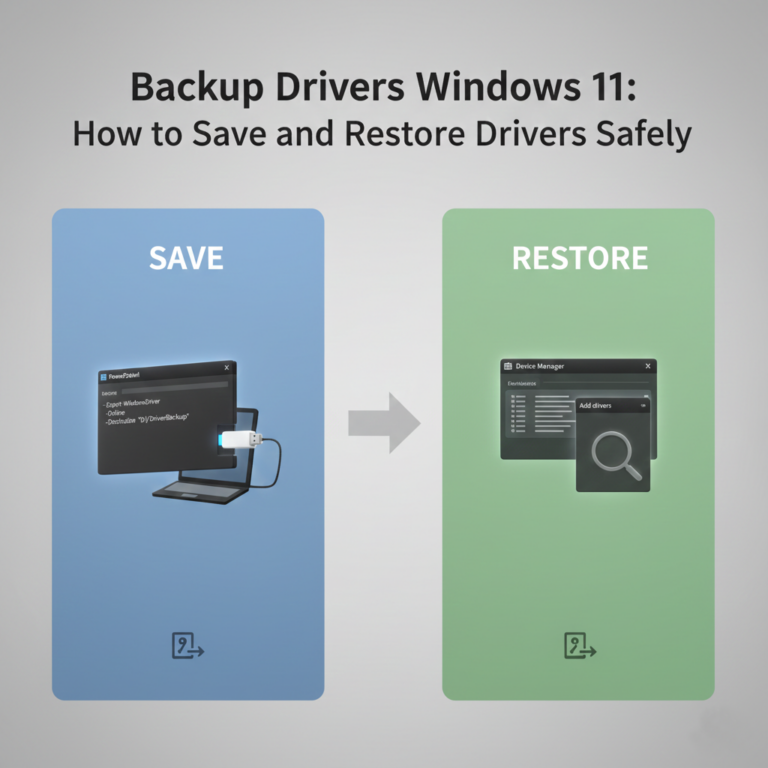
Backing up drivers in Windows 11 is an often-overlooked step that can save hours of frustration after a system reinstall or hardware change. If you’ve ever lost Wi-Fi, sound, or graphics functionality after reinstalling Windows, a proper driver backup would have prevented it.
Why You Should Backup Drivers in Windows 11
Drivers allow Windows to communicate with your hardware. Without them, devices may stop working or perform poorly.
You should create a driver backup if you plan to:
-
Reinstall Windows 11
-
Replace or upgrade hardware
-
Fix system errors or crashes
-
Move to a new SSD or hard drive
A driver backup ensures you can restore everything quickly, even without an internet connection.
So, let’s get started with how to back up drivers in Windows 11 using built-in tools and secure methods that work on any PC.
Backup Drivers Using DISM (Built-In Tool)
Windows 11 includes a powerful command-line utility that can export all installed drivers.
Steps:
-
Create a folder, for example:
D:\DriverBackup -
Open Command Prompt as Administrator
-
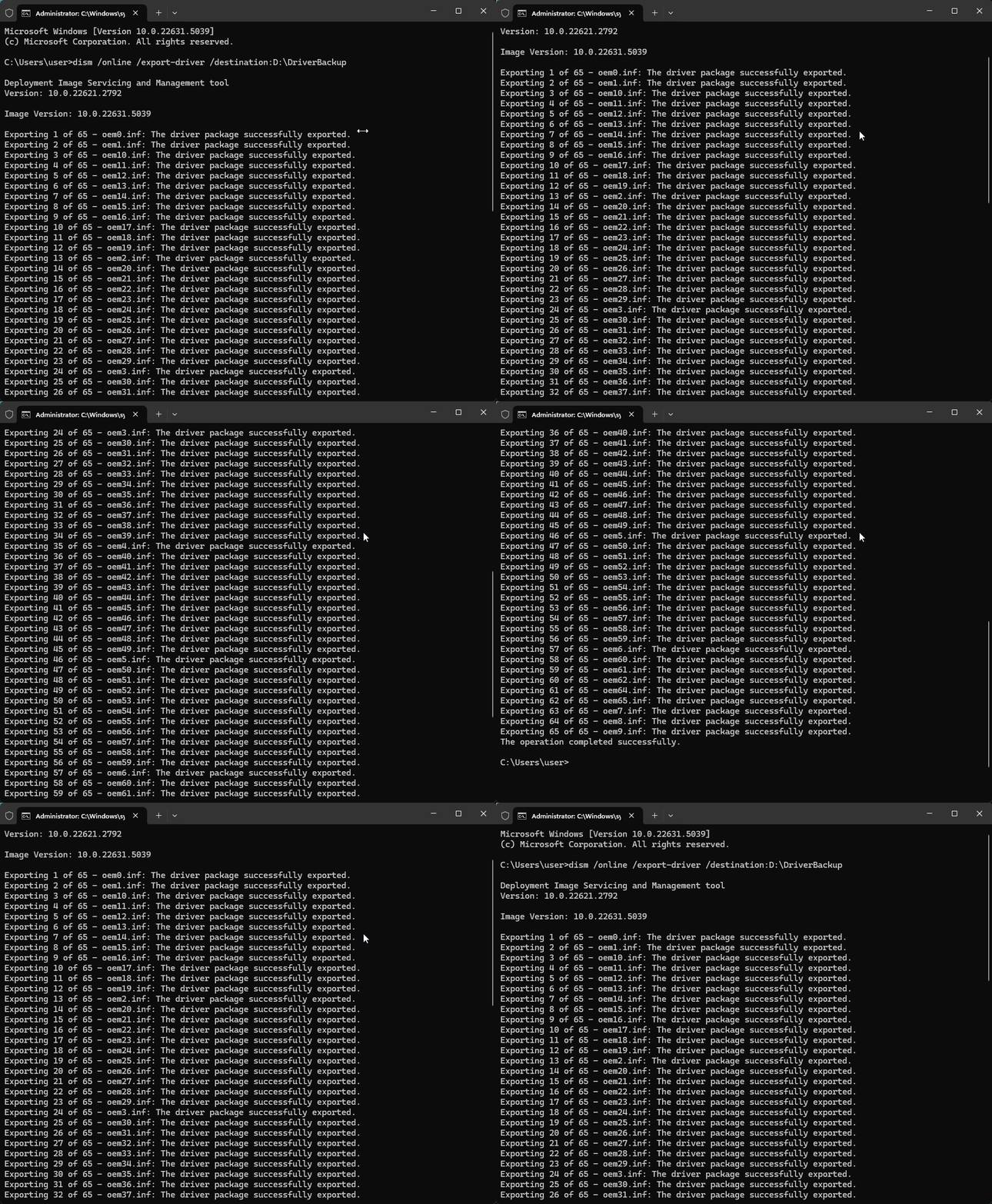
Run the command:
dism /online /export-driver /destination:D:\DriverBackup
Windows will automatically save all third-party drivers to the selected folder.
✅ This method is safe, fast, and recommended.
Explore other helpful tools in our Windows utilities section.
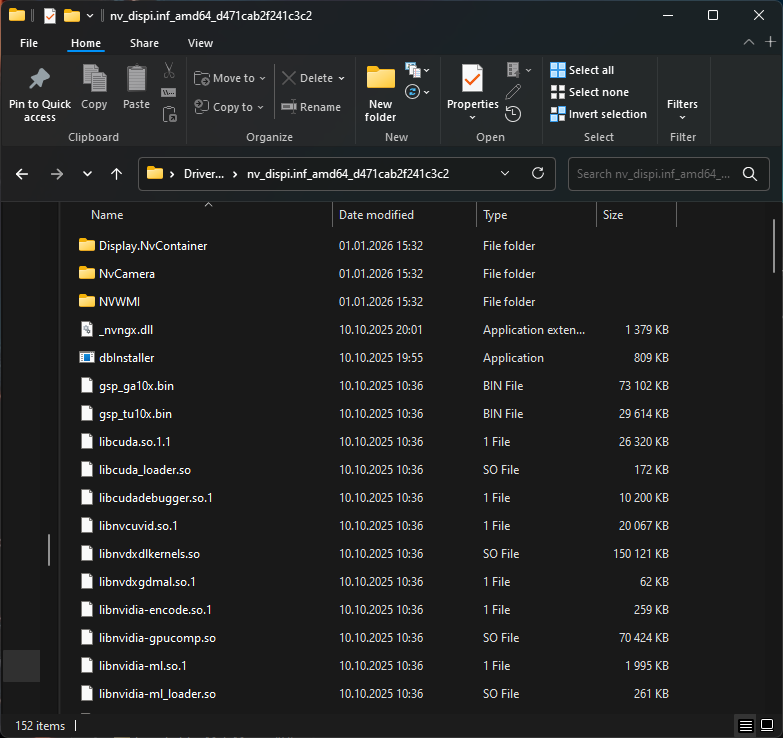
As a result, the drivers will be saved in subfolders in the folder you specified during export and will look like this.
Using Windows PowerShell command to export drivers:
- Create a folder where you plan to export the drivers.
- Run PowerShell as administrator. To do this, right-click the Start button and select “Windows Terminal (Administrator).”
- Enter the command
Export-WindowsDriver -Online -Destination D:\Drivers
The result will be the same as in the previous methods.
How to Restore Drivers After Reinstalling Windows 11
Once Windows is reinstalled, restoring drivers is simple:
-
Open Device Manager
-
Right-click a device with missing drivers
-
Choose Update driver
-
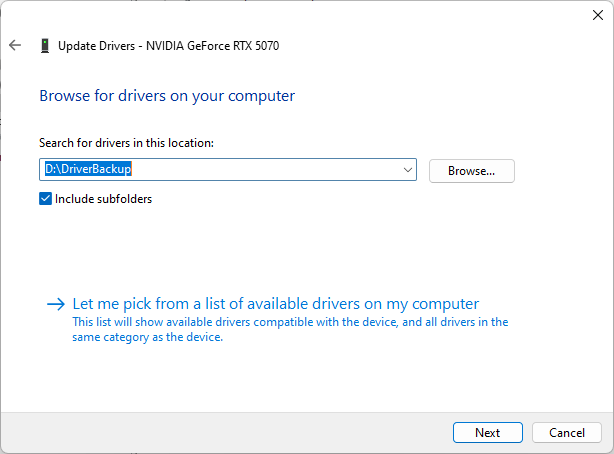
Select Browse my computer for drivers
-
Point to your backup folder
Windows will automatically install the correct driver.
Where to Store Your Driver Backup
For best results:
- Copy the backup folder to a USB flash drive
- Save it to an external hard drive
- Upload it to cloud storage (Google Drive, OneDrive)
Never store the backup only on the system drive.
Final Thoughts
Knowing how to backup drivers Windows 11 is a simple but powerful skill. It helps you recover faster, avoid hardware issues, and stay productive after reinstalling Windows.
Using built-in tools like DISM ensures maximum compatibility and security without relying on third-party software.
